AI Game Developer in T3 Code: Set Up the ACP Agent for Unity, Godot and Unreal
AI Game Developer is now an ACP agent. Add it to T3 Code, or any Agent Client Protocol client, and work on your Unity, Godot or Unreal game from there.
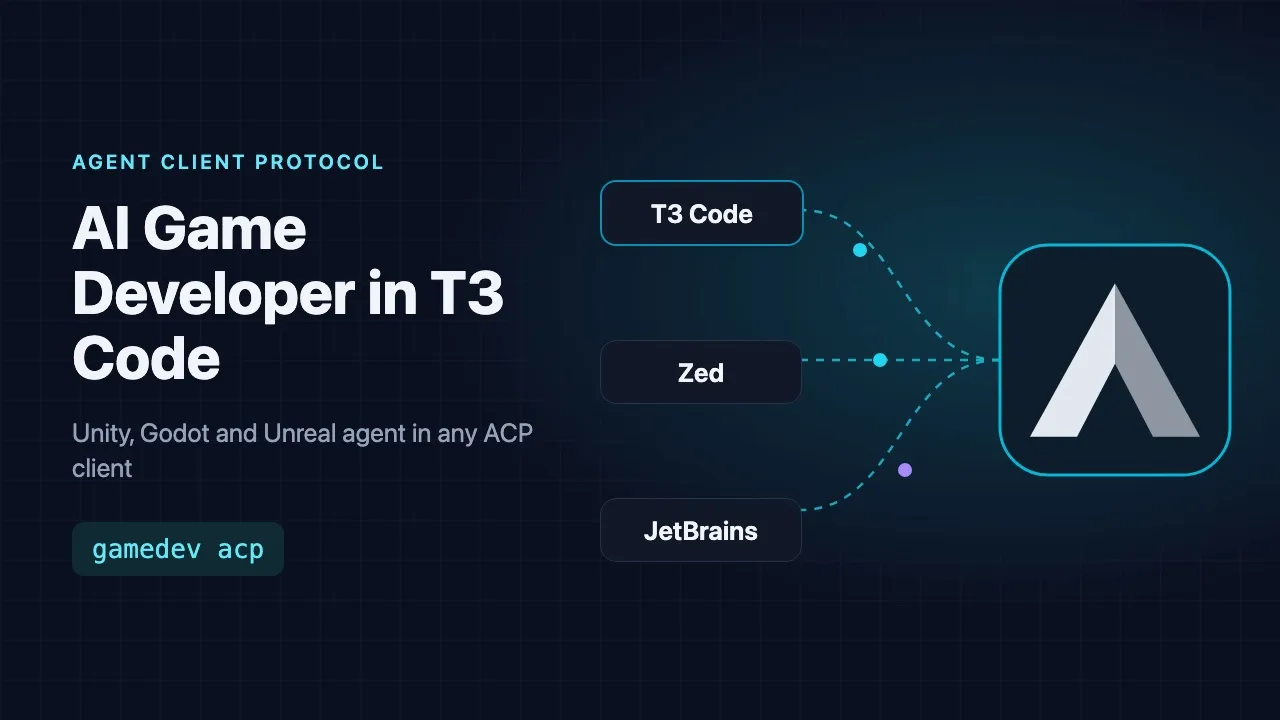
AI Game Developer now speaks the Agent Client Protocol (ACP). Since release 0.25.11 the gamedev CLI has a new command, gamedev acp, which turns it into an ACP agent. Any ACP client can start it and chat with it: T3 Code, Zed, JetBrains IDEs and the other clients of the ACP Registry. You keep your AI Game Developer account, your models and the engine tools for Unity, Godot and Unreal; only the window you type in changes.
This post explains what the ACP agent does and walks through the setup in T3 Code step by step, including sign-in and the model picker.
What Is the Agent Client Protocol?
The Agent Client Protocol is an open standard for connecting coding agents to the apps people work in, described at https://agentclientprotocol.com. The client starts the agent as a local process and the two exchange JSON-RPC messages over standard input and output. The protocol covers what a chat needs: sign-in, sessions, prompts, streamed replies, tool calls with their results, permission requests and stopping a turn.
For you this means one agent works in many apps. A client that supports ACP can run AI Game Developer without a dedicated plugin, and every improvement we ship reaches all of those clients at once.
How the AI Game Developer ACP Agent Works
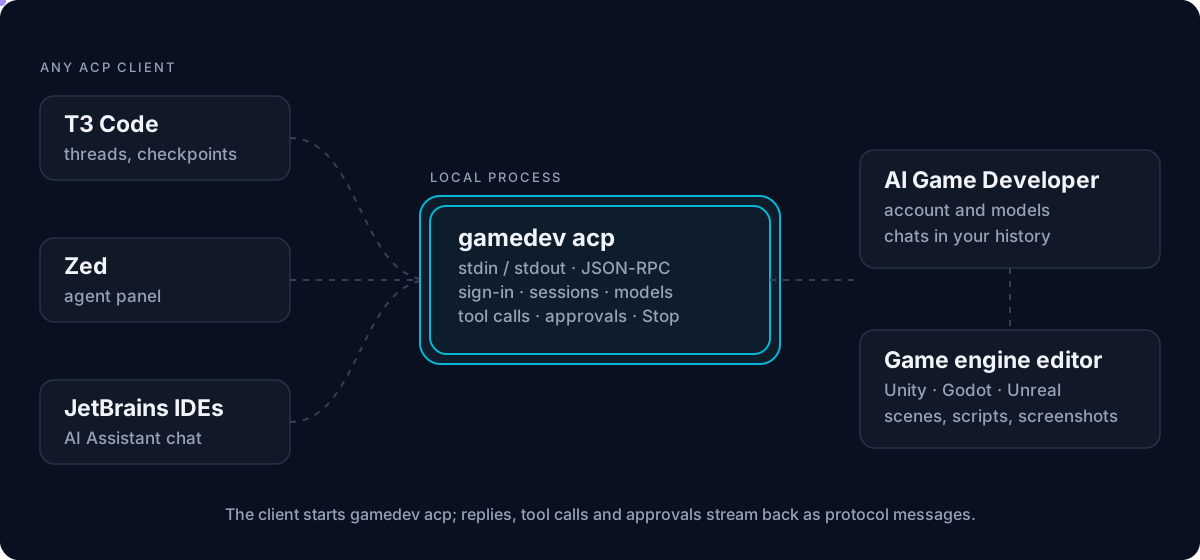
When a client starts gamedev acp, it does not run a second copy of the agent. It connects to the same AI Game Developer background service that the desktop app and the gamedev CLI use. So the ACP agent:
- Uses the account this computer is signed in to, the same one as in the desktop app.
- Offers the models your account can use, with the same list as the app's model picker.
- Works in the project folder the client opens, with the project's own tools: files, terminal commands and, through the engine plugins, the open Unity, Godot or Unreal editor.
- Keeps every chat in AI Game Developer's history, so a chat started in T3 Code is not lost when you close it.
The protocol messages travel only on the process's standard output, and all diagnostics go to standard error, so a client never receives stray text in the middle of a reply.
Set Up AI Game Developer in T3 Code
T3 Code is a desktop and web app for running coding agents on your projects, with threads, checkpoints and task delegation. It runs ACP agents next to its built-in providers. Its own guide to ACP providers is at https://github.com/pingdotgg/t3code/blob/main/docs/user/providers-acp.md.
Step 1: Install the gamedev CLI
The ACP agent ships in the gamedev CLI. It needs Node.js 22 or newer. Install it once on the computer where T3 Code runs its agents:
npm install -g @baizor/gamedev
gamedev --version
The version must be 0.25.11 or newer. If you have not used AI Game Developer before, the Quickstart at ai-game.dev/docs/quickstart shows how to connect your engine project.
Step 2: Add a Local ACP Command
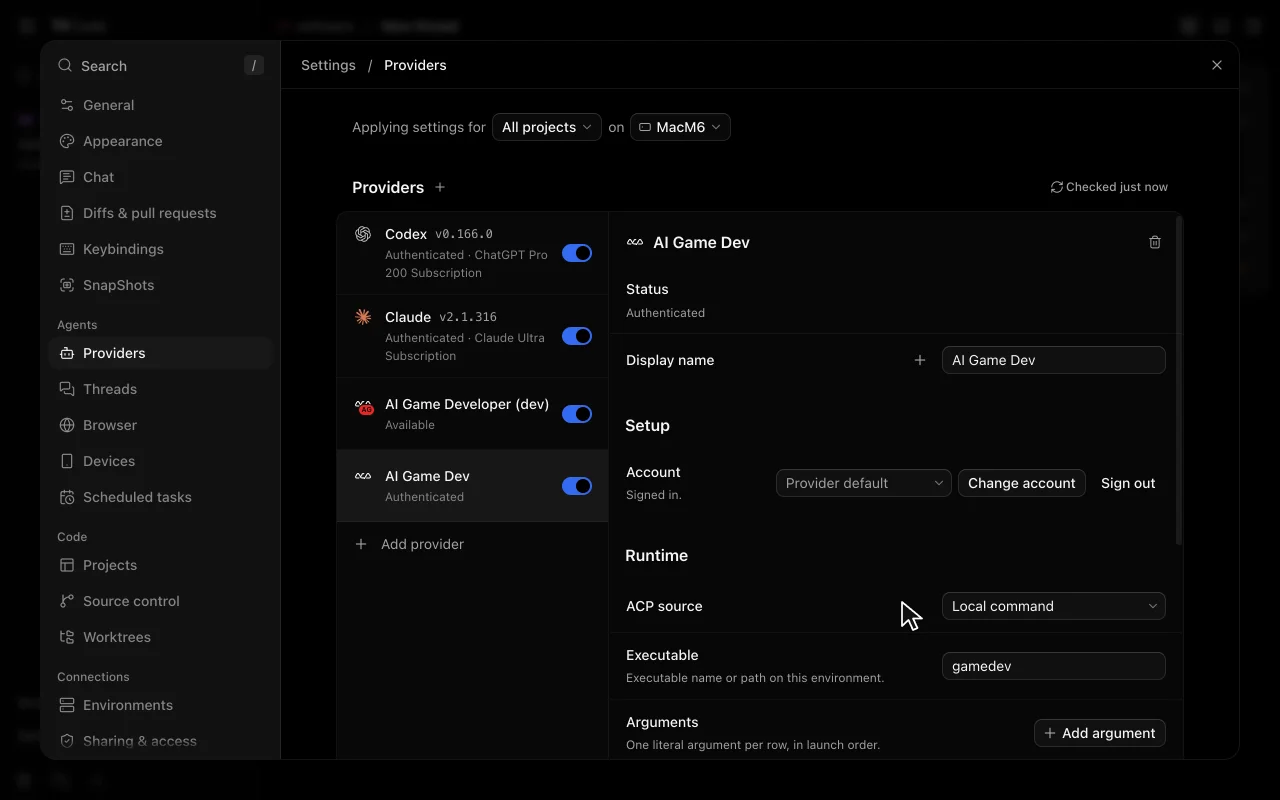
- Open Settings, then Providers, and select Add provider.
- Select Show more, then Local ACP command, next to the ACP Registry search.
- Enter gamedev as the executable. Select Add argument and enter acp.
- Select Next, set the label to AI Game Dev and select Add instance.
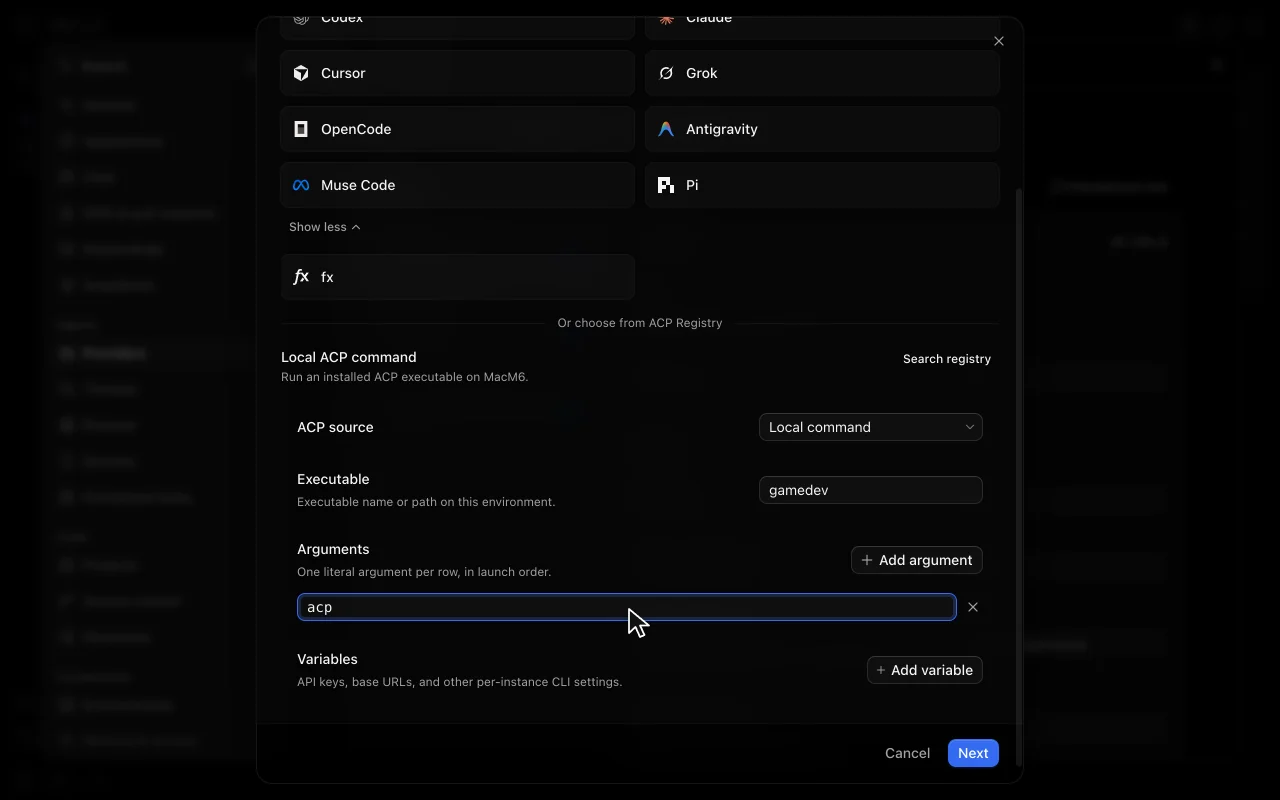
T3 Code starts the executable directly, without a shell, so enter each argument on its own row. If you prefer not to install the CLI globally, use npx as the executable with three arguments: -y, @baizor/gamedev and acp.
Step 3: Sign In
Open the new provider and choose Sign in. AI Game Developer offers two methods:
- Sign in with browser. T3 Code shows an ai-game.dev address that already contains your sign-in code. Open it, confirm the code and approve.
- Sign in from a terminal. T3 Code opens a terminal that runs the gamedev sign-in, which shows a code and an address to open on any device.
If this computer is already signed in to AI Game Developer, through the desktop app or the CLI, Sign in finishes at once with that account. A sign-in from T3 Code never switches the account of a computer that is already signed in.
Or Add It from the ACP Registry
We have submitted the agent to the official ACP Registry under the name AI Game Dev. Once the listing is live, you can skip Step 1 and Step 2: in Add provider, select Show more, search the registry for AI Game Dev and select Add. The registry entry points to the published @baizor/gamedev package, and the registry picks up each new release on its own.
Work on Your Game from T3 Code
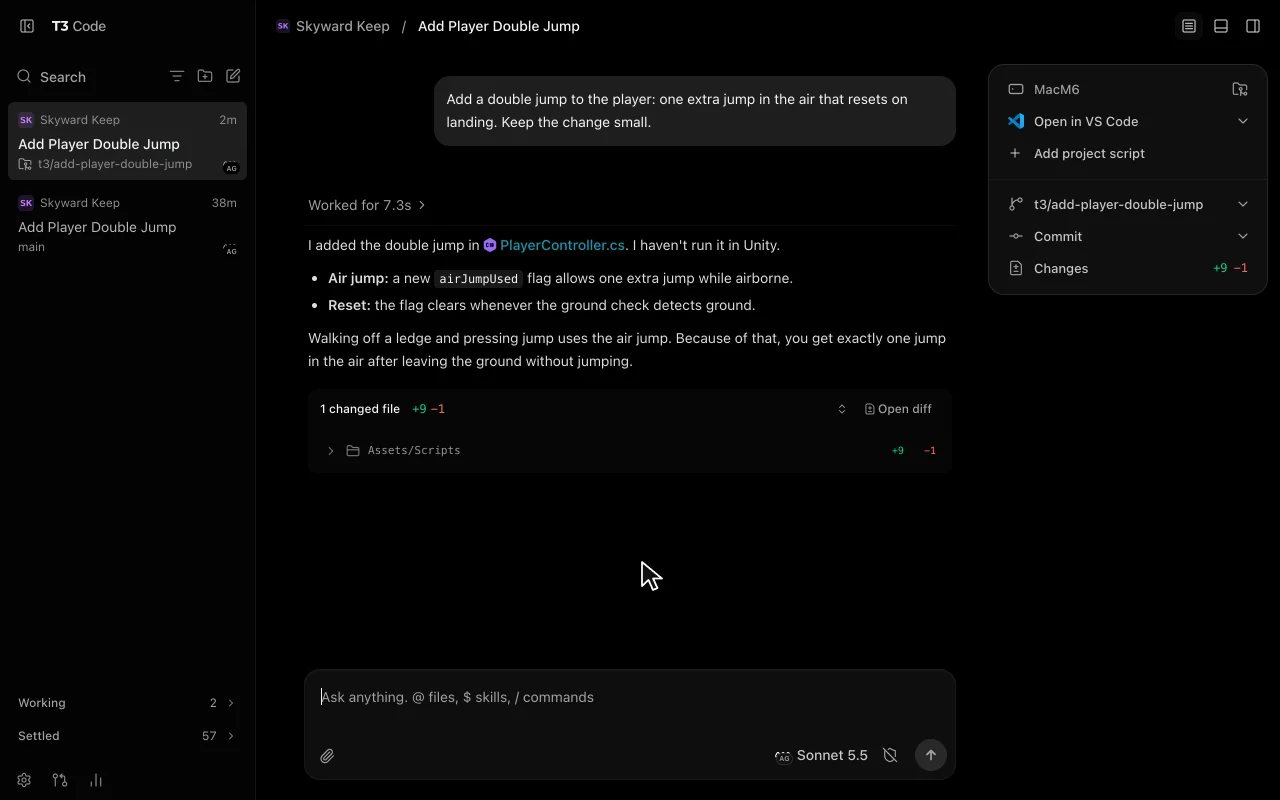
Open your game project in T3 Code, start a thread, pick a model under AI Game Dev and describe the task. Replies stream in as they are written. Every tool call appears in the thread, such as the file the agent reads, the command it runs or the engine tool it calls, and the changed files show up with their diff.
Choose a Model
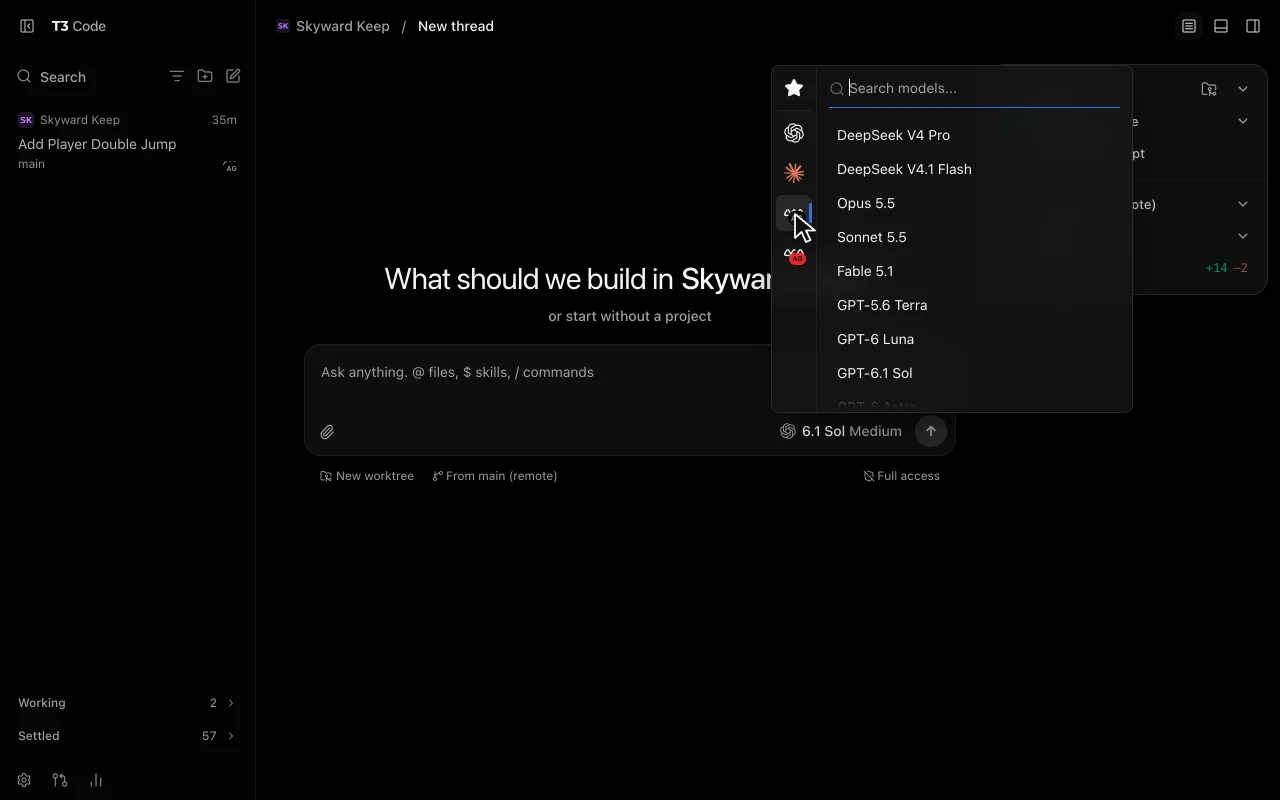
The composer's model picker lists the models of your AI Game Developer account under the AI Game Dev provider, the same list as in the app. Switching the model changes it for that chat, just like the /model command in the CLI.
Approvals and Stop
When the agent wants to do something that needs your approval, such as writing outside the project, it sends a permission request. T3 Code answers it according to the thread's permission mode: Supervised shows the request in the conversation for you to allow or reject, while Auto and Full access approve it automatically.
Stop ends the current turn: the running work is stopped and the thread is ready for your next message. Closing a thread only detaches T3 Code; the chat stays in AI Game Developer's history.
Other ACP Clients
T3 Code is one of several apps that speak ACP. In Zed and in JetBrains IDEs you add a custom agent the same way: the command is gamedev and its argument is acp. Sign-in, the model list and the tools behave the same in every client.
What Is Not Supported Yet
The first version focuses on everyday chat work. A few protocol features are not there yet:
- Reopening an earlier chat from the client. New sessions always start a new chat.
- MCP servers that the client passes to a new session. The agent uses the project's own tools.
- Image and audio attachments in prompts.
Tell us what you need first on Discord or GitHub, and see what else shipped in each release at ai-game.dev/releases.
Get Started
Install the CLI with npm install -g @baizor/gamedev, add gamedev acp to T3 Code as a Local ACP command and sign in. If you are new to AI Game Developer, start with the Quickstart at ai-game.dev/docs/quickstart, or get the desktop app at ai-game.dev/download to work on the same chats in our own workspace.